
How to Use Digital Interactive Notebook Activities in your World Language Classroom
Google Drive Interactive Notebook Activities for Spanish and French
If you like interactive notebooks but don’t like the cutting and pasting, you will love using Google Drive Interactive Notebook Activities in your Spanish or French classes. They provide all the benefits of cut-and-paste interactive notebook activities without the messiness and lost instructional time—once you get the hang of it.
Keep reading to learn how to use digital interactive notebook activities in your classroom, avoid common technical hiccups, and get your FREE Google Drive activity for practicing Spanish clothing vocabulary.

The first time I used digital interactive notebooks, I was anxious. Technical endeavors used to intimidate me. I was sure something would go wrong, and I would waste an entire hour of instructional time, which I can’t afford on the block. A few students in my second class couldn’t access the activity, so I had them pair up with classmates. We kept going, and I learned what to do differently next time. I’ll share those tips below.
Paper and Pencil vs. Digital Activities
I’m definitely a paper-and-pencil gal, hard-cover books, etc. So I didn’t jump on the digital bandwagon immediately. But when I saw what these activities allowed students to do, I wanted to give mine that advantage.
Click here for the FREE Spanish Clothing Google Drive Activity
Here are some ways digital activities enhance learning in world language:
- Students can manipulate parts of speech. The ability to move direct and indirect object pronouns around helps students practice proper placement. This feature is also ideal for learning how to form questions in Spanish and French.
- It’s digital—the love language of students. Even my most feisty students participate enthusiastically when I assign Google Drive activities.
- There is no mess, no cutting, and no lost instructional time while students glue their pieces into their notebooks.
Now that we’ve established the benefits of digital interactive notebook activities, I will show you, step-by-step, how to use them in your classroom.
Step-by-Step Instructions
- First, click the link for the Google Drive Activity.
- Create a Google Account if you do not have one. Each student will also need his or her Google account.
- Open the file in Google Drive and MAKE A COPY! This is very important as you do not want your students modifying your original. If you have two classes, I would make a copy for each class and give each class a different URL—or share one copy with one class and another with another class.
- Share the Google Slides Activity with all your students.
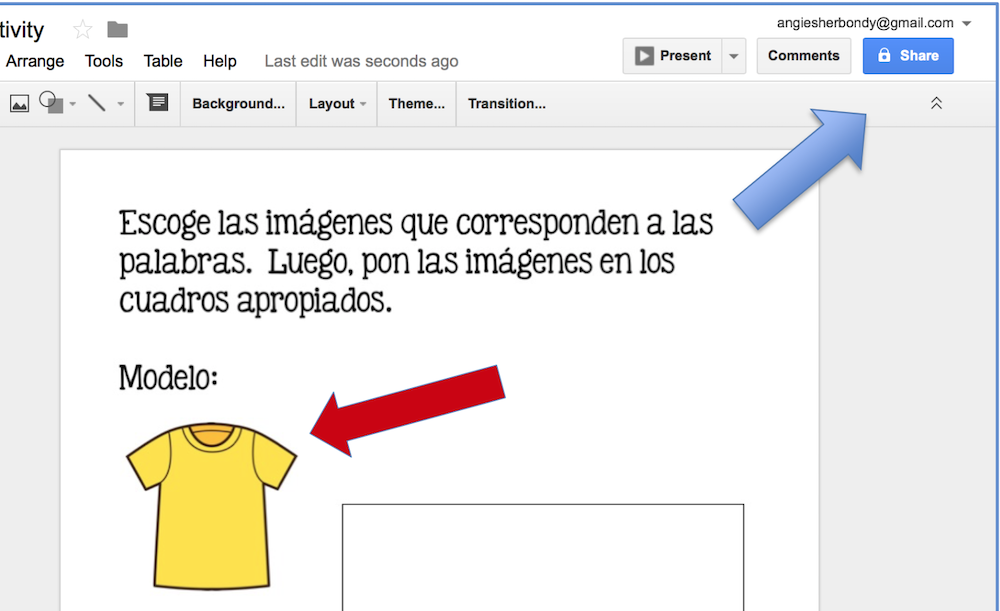
5. Choose the option, “Anyone with a link” and “Viewer,” not “Editor.”
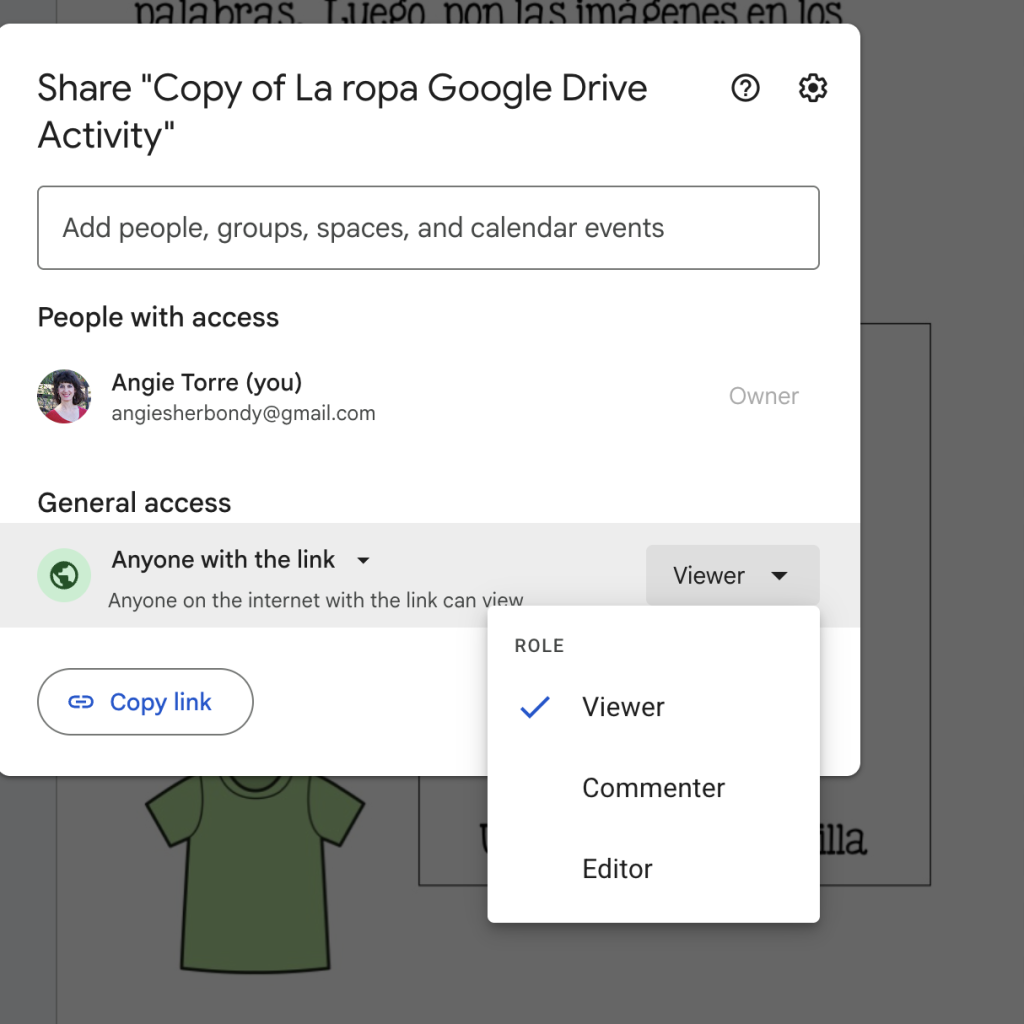
6. Enter students’ email addresses in the sharing box, or give them the URL the night before and have them paste it into their browser’s address bar the next day.
7. Tell students to open their Google Drive, find the Google Slides Activity, and MAKE A COPY. Students must make their own copies before they can move the pieces, type their answers, and submit their work to you for grading.
8. Tell students to type their own names in the title box, first and last, so you will know whose Google Drive Activity it is. (Their name replaces the title of your Google Slides Activity.)

9. Model how to move the pieces around or write the answers, and then tell students to do the same. As you give each instruction, demonstrate the step on the projected Google Slides activity so students can follow along.
10. When they are all moving their pieces or writing in the answers, walk around and help them until they have completed all the tasks.
11. When students finish writing their answers, tell them to click, “ share” and to type in your email address. You will then be able to grade their submissions. (I had my T.A. grade them.)
See a few demos below:
Click on the following link for the Spanish Questions Google Drive Activity
Click on the following link for the Spanish Weather Digital Interactive Notebook Activities.
Click on the following link for the French Weather Google Drive and Interactive Notebook Activities.
SAVE MONEY BY BUYING THE BUNDLE.
Spanish Digital Activities Bundle
French Google Drive Activities Bundle
Don’t forget your FREE Spanish Clothing Google Drive Activity
If you missed the blog post about Google Drive Interactive Notebook Activities, click here: Google Drive Interactive Notebooks
Click on the image below
to get your FREE PowerPoint.
 Pinterest
Get More Freebies and Teaching Tips!
Testimonials
Youtube VideosMy Youtube Videos
Pinterest
Get More Freebies and Teaching Tips!
Testimonials
Youtube VideosMy Youtube Videos