Three Video Tutorials on How to Use Google Classroom

What do you do when, in the blink of an eye, you have to teach your students remotely and you haven’t been trained to do so?
You’re resourceful. You watch video tutorials. Like the ones below.
In this post, you’ll learn how to use and upload files to Google Classroom for distance learning.
The following two videos explain how to use Google Classroom. The first one is a quick overview. You may wish to slow down the speed. Pocketful of Primary is enthusiastic and a fast talker! But she gives great tutorials on how to use Google Classroom!
In the next video, my favorite, Abdul Rehman Siddiqui explains, step-by-step how to use Google Classroom for high school. This video is more detailed than the first.
Many teachers have asked me to show them how to upload files into Google Classroom. The following video shows you how to upload files from Google Drive, your computer, and YouTube.
Since teachers have many files that are not Google compatible, they need to know how to share these quickly with their students. There is not enough time to make all of them into Google format. However, for those of you who wish to do so, the following post shows you how: How to Convert files to make them Google Compatible (Scroll to the last video in the post.)
In the next video, I show you how to upload PDFs, PowerPoints, links, and YouTube videos to Google Classroom from your desktop, Google Drive, YouTube, and the Internet, even files that are NOT Google compatible.
Maximizing Google Classroom: Updates You Can’t Miss
Google Classroom has been a game-changer in education, making it easier for teachers to create, manage, and grade assignments. But did you know that Google has continued to make updates to make this LMS even more efficient, user-friendly, and engaging for both teachers and students? If you’ve been using Google Classroom for a while, you’ll notice some significant updates that will streamline your workflow and enhance your teaching experience.
This post will walk you through the latest features and updates in Google Classroom, from group assignments to AI-powered practice sets. These features are designed to make your life easier, boost student engagement, and help you better manage your classroom. Whether you’re teaching a grade level as part of a provisioned class or handling multiple different classes, these tools will make it all much more manageable.
What’s New in Google Classroom: Key Updates
Below are the new features you should know about:
1. Student Groups for Differentiated Assignments
The new group assignments feature is a a real breakthrough for personalized learning. Teachers can now create and manage student groups within the People tab, making it easier to assign specific tasks based on individual or group needs. Whether you want to assign different new assignments for a group of advanced students or provide a more focused task for others, this update allows for seamless differentiation. This feature is particularly useful when you have different classes at various levels, which is pretty much the makeup of most of our classrooms. It’s a huge challenge to keep all students on the same page. This feature allows you to cater to each student’s needs while maintaining organization.
2. Resources Tab for Lesson Management
Managing resources just got a lot easier. The new Resources tab in Google Classroom allows you to organize, manage, and share interactive lessons, such as video-based learning activities and practice sets, all in one central location. This new tab will save you time by consolidating all your materials in a single space, making it the easiest way to access what you need when you need it.

The ability to share materials with students directly through Google Drive or Google Docs makes it simple to provide additional resources that can be used to supplement class content. For example, if you’re teaching a unit on Spanish verbs, you can create a practice set in Google Drive, upload it to the Resources tab, and assign it to your class in just a few clicks.
3. Interactive Video Questions
The ability to embed questions intoYouTube videos has been a huge request from world language teachers. The latest Google Classroom update now allows you to add interactive video questions directly into videos that are assigned through Classroom. This is perfect for comprehensible input and video-based learning, where students can answer questions as they watch the video. Not only does this help students engage with the content more actively, but it also gives teachers the chance to provide instant feedback while students are still learning the material. Look out, EdPuzzle! b(I still love EdPuzzle and have heard teachers say this new feature, while useful, doesn’t measure up to EdPuzzle yet.) Have you compared the two?
By embedding questions directly into videos, you can ensure that students aren’t just watching passively but are actively participating in their learning. This learning management system now supports these interactive elements, enhancing the effectiveness of video assignments.
4. Integration with Student Information Systems (SIS)
A significant update for teachers and administrators is the ability to import student rosters and due dates directly from their Student Information Systems (SIS). (An example of an SIS is PowerSchool.) You can now bring in student lists, grading categories, and grading periods, allowing you to manage all of this information directly within Google Classroom. This feature eliminates the need for duplicate data entry and helps ensure that your records are always up to date.
Another cool update is how Google Classroom now works better with your school’s Google Workspace setup. It can pull in details like class names and schedules automatically, so teachers don’t have to type everything in by hand every time. You can also bring in your class lists and grade categories straight from your school’s system, which saves a lot of time and hassle.
5. AI-Powered Practice Sets
One of the most exciting new features is the integration of AI-powered practice sets. These sets provide instant feedback to students, helping them learn and progress at their own pace. The AI technology analyzes student responses, offering hints and feedback that is personalized for each student. This feature works in over fifty languages, making it perfect for world language teachers working with diverse student populations.
You can now create practice sets for your Spanish and French students to reinforce what they’ve learned. With AI-powered learning, students receive the support they need when they need it most, helping them feel more confident in their understanding.
While it’s great to have autocorrecting activities (woo hoo!), wouldn’t it be great if Google Classroom automatically graded submissions according to ACFTL standards? It doesn’t yet, but there IS a platform that not only does that, it also tells the student what he or she needs to do to improve. It’s called Speakable. Check it out.
6. Enhanced Analytics for Teachers
Google Classroom’s analytics tools have been upgraded, providing more detailed insights into student progress. Teachers can now view student submissions, assignment completion rates, and grade trends for each student, making it easier to identify which students may need additional support. With enhanced analytics, teachers can make data-driven decisions and tailor instruction based on real-time feedback.
This also includes insights into how students are performing with new assignments. By tracking trends, you can see if a particular concept is challenging for the class and adjust your teaching methods accordingly.
7. Rich Text Formatting (What?)
Google Classroom now supports rich text formatting in posts and assignments. Um …rich text formatting?…what does that mean?
It means teachers and students can now use bold, italics, and bullet points to enhance the readability and clarity of their messages and assignments. This small update can make a huge difference in improving communication within the platform. If you’ve ever struggled to make an assignment stand out or ensure that your post is easy to read, this update will solve that problem.
With rich text formatting, assignments and posts will be much clearer, helping to ensure that instructions and expectations are communicated effectively. For instance, you can use bold text to highlight important dates or key instructions, making it easier for students to follow along.
Practical Examples of How to Use These New Features
Here are some real-world examples of how you can integrate these new features into your teaching:
- Group Assignments: In a Spanish class, you can create student groups based on proficiency level. The advanced group might work on a listening assignment with a link to an audio on a Google Doc, while beginner students focus on basic vocabulary practice. This allows you to cater to diverse learning needs while keeping everything organized within Google Classroom.
- Interactive Video Questions: Assign a video-based learning activity where students watch a video about Spanish culture. Insert interactive questions throughout the video to test comprehension, and then provide instant feedback. This approach ensures that students actively engage with the material.
- AI Practice Sets: You can create AI-powered practice sets on various grammar topics, such as conjugating verbs. The system will offer hints and feedback based on the student’s responses, allowing for a more personalized learning experience.
How to Get Started with the New Features
To start using these updates, log into your Google Classroom and explore the following steps:
- Join a Class: If you haven’t already, you can easily join class by entering the class code provided by your instructor or creating a class from the class code section. Once inside, you’ll be able to access all the updated features.
- Set Permissions: Teachers can now set permissions for students to ensure that their work is submitted on time and in the correct format. Use this option to ensure that your assignments are completed correctly.
- Invite Students: You can invite students using their personal Google account or an education account, making it easy to manage your class, whether your students are using Google services or G Suite for education.
- Customize Your Classroom: Don’t forget to update your classroom profile photo and Gmail profile picture for easy identification. This small step helps personalize your teaching experience and keeps your Classroom organized.
Final Thoughts
Google Classroom’s updates for 2025 provide an incredible suite of tools that help you manage your class with ease, make your teaching experience more efficient, and your students’ learning more engaging.
Whether you’re using a personal Google account or education account, you’ll find that these new features will allow you to grade student work more effectively, track performance through analytics, and provide more instant feedback to students. If you’re looking for the easiest way to streamline classroom management and enhance student engagement, these updates are a must-try.
Take advantage of the Resources tab, leverage the new interactive video questions, and use rich text formatting to communicate better. Teaching with Google Classroom has never been more efficient.
Google Drive Activities
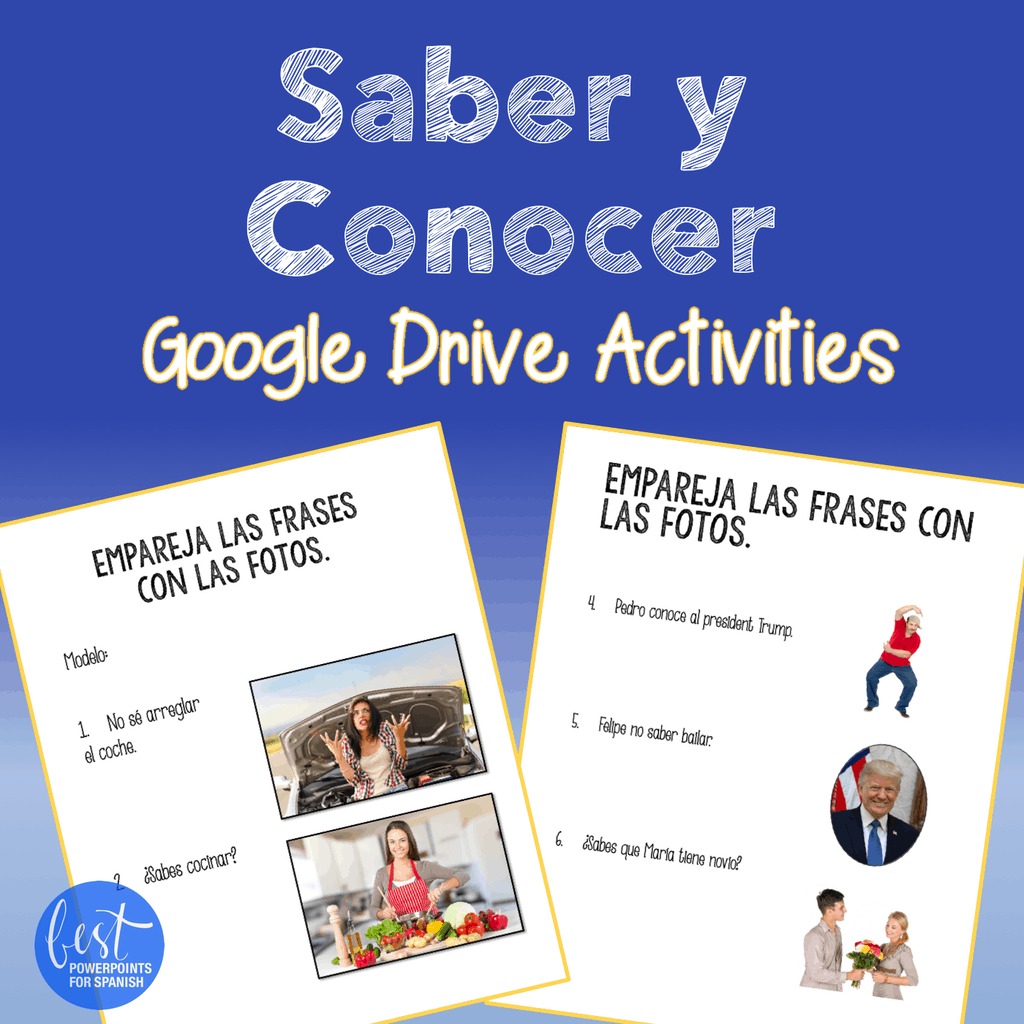
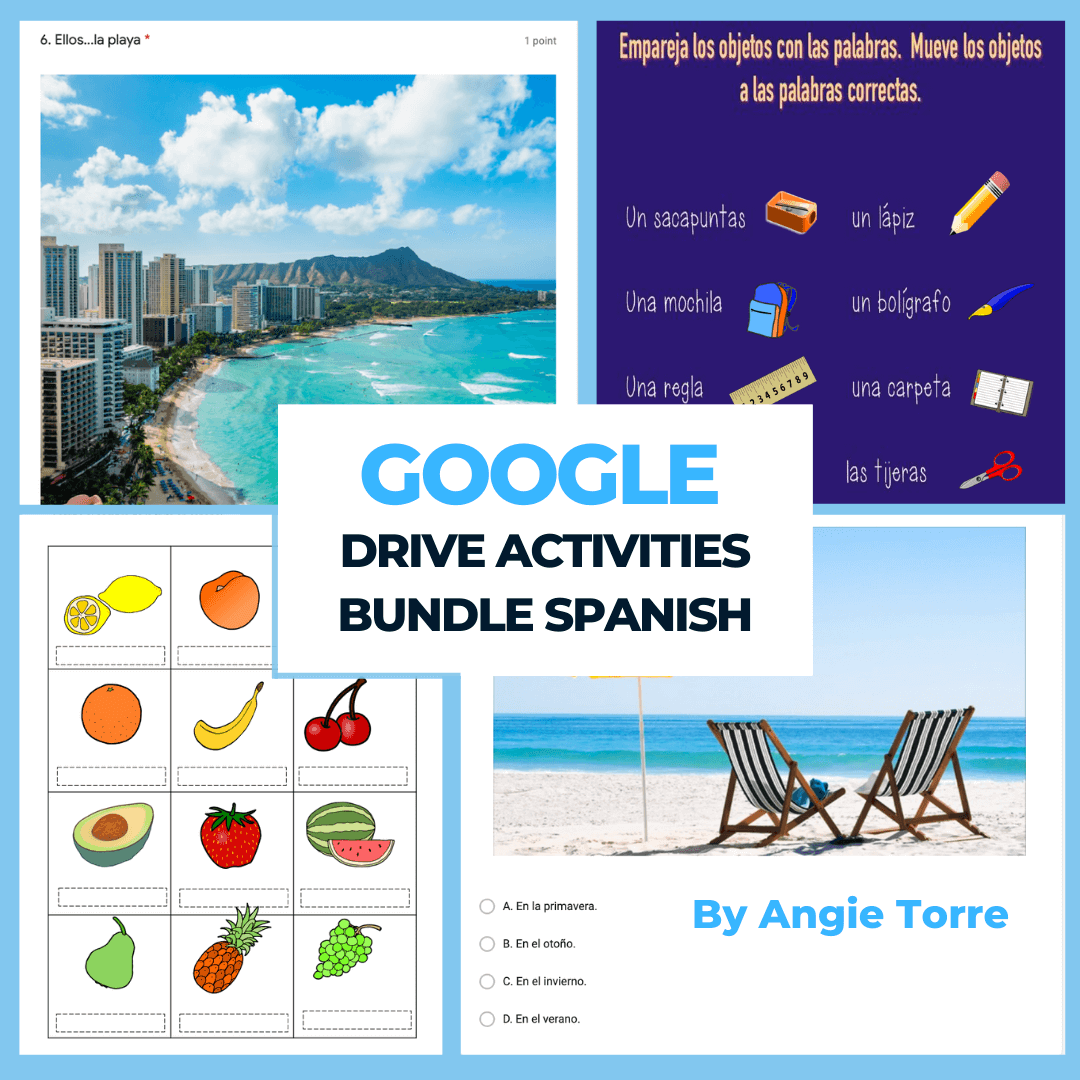
Of course, you will need Google Drive Activities for your students, especially if you are teaching online. Students LOVE them! I get 100% student engagement when I assign them.
They also love Digital Escape Rooms. Have you used them in your world language classes? Check them out! Your students will thank you.

I hope these tutorials on how to use Google Classroom have been helpful and will facilitate the process of teaching online.
If you would like to receive more freebies and teaching tips in your email, subscribe to my monthly newsletter: BestPowerPointsforSpanish Just scroll down to the bottom and click, “Sign up.”
Don’t miss out on freebies! Make sure to follow my STORE in order to get notified of updates on products, free resources, and new products.
Happy teaching!
Connect with me on social media, too!
 Pinterest
Get More Freebies and Teaching Tips!
Testimonials
Youtube VideosMy Youtube Videos
Pinterest
Get More Freebies and Teaching Tips!
Testimonials
Youtube VideosMy Youtube Videos